Theming ServiceStack Razor Views
In this post, we look at adding theming capabilities to the ServiceStack Razor View engine. Source and live demo are included. This post is third in a series investigating ways to leverage ServiceStac
In this post, we look at adding theming capabilities to the ServiceStack Razor View engine. Source and live demo are included. This post is third in a series investigating ways to leverage ServiceStack in building a RESTful API and UI from a database. The main objective for this new theming capability is to allow easy development of new themes on top of the ServiceStack Razor view engine, with fallback capability to the default theme for views, content pages, master pages and layouts that don’t require specific theming.
Intro
This post is third in a series investigating ways to leverage ServiceStack in building a RESTful API and UI from a database. Although not necessary for this post, you may be interested in reading the previous two posts which describe the implementation thus far:
- Post #1: Generating a RESTful Api and UI from a database with LLBLGen and ServiceStack (templates on Github and Demo).
- Post #2: RESTful Api and UI for Typed Views and Typed Lists with LLBLGen and ServiceStack.
In this third post, we will add theming to the ServiceStack views. Take a look at the demo first if you’d like (use the ‘Themes’ dropdown at the top right to switch between themes). [See the Demo](http://northwind.mattjcowan.com) [See the Themed Demo](http://northwind.mattjcowan.com/?theme=enterprise)
Demo
THEME SHOWCASE! Screenshots, and theme descriptions I purposely put together the 4 themes (Default, Slate, Superhero, and Enterprise) to showcase various aspects of the theming capabilities in the implementation described in this post. I also want to stress that I’m not providing this as a reference implementation, there are many other ways to tackle this problem; however, I do think this implementation covers a fairly comprehensive set of theming needs. I’d be very interested in seeing how others might implement theming using ServiceStack. The base requirements I set out to meet were basically the following:
- Ability to handle ServiceStack Razor Content Pages
- Ability to handle ServiceStack Razor View Pages
- Ability to handle ServiceStack Razor Handlers
- Fallback capability to default views (so that new themes don’t have to necessarily re-write every UI partial/page component)
- Support for Partials, Layouts/Masterpages, and standard Views
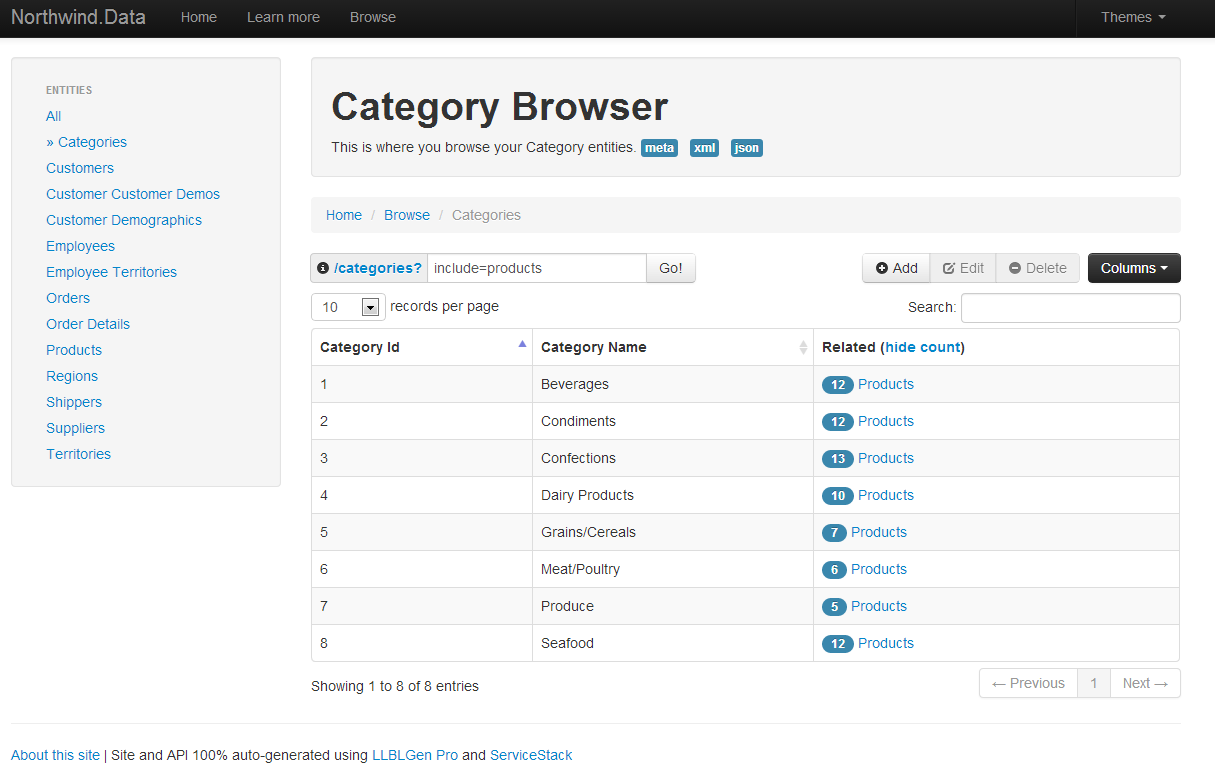 | Default Theme See it in action: “http://northwind.mattjcowan.com/?theme=default |
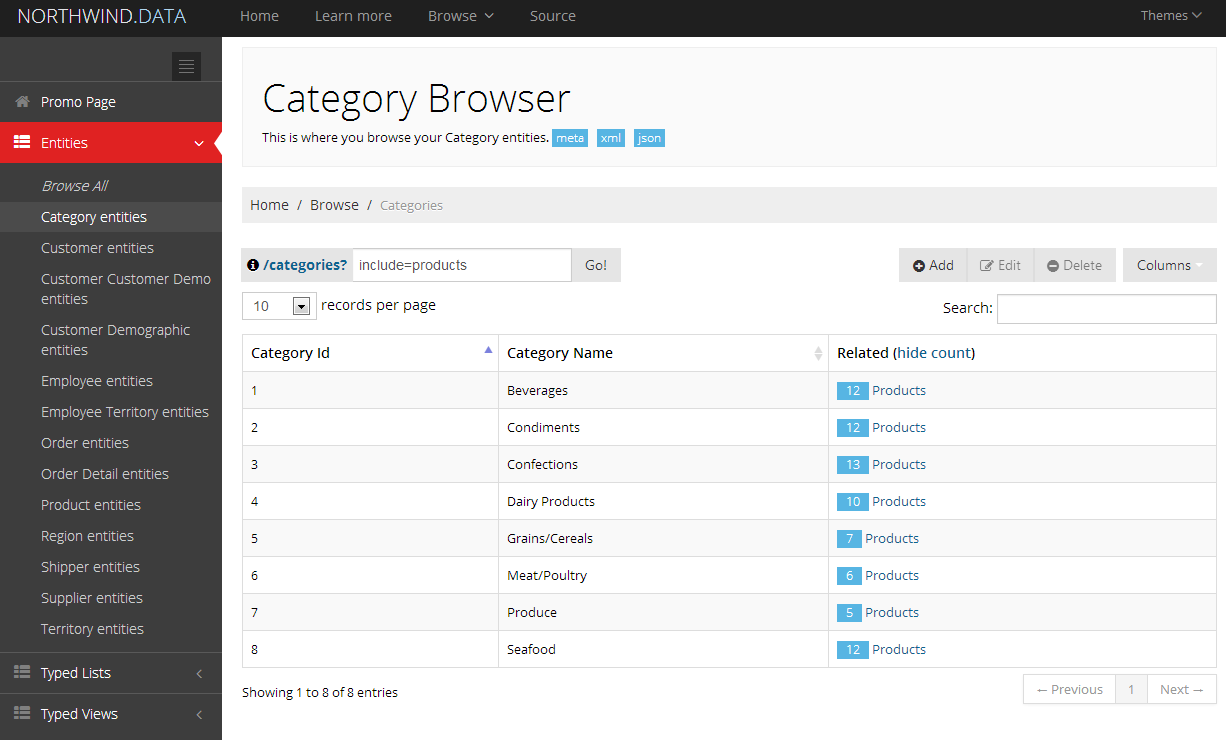 | Enterprise Theme A more modern theme (using Metronic), showcasing essential elements of a theme overhaul. Implemented using a custom _Layout.cshtml page, completely custom CSS and JS departure from default theme, also includes a custom default page and “404” razor handler. See it in action: http://northwind.mattjcowan.com/?theme=enterprise |
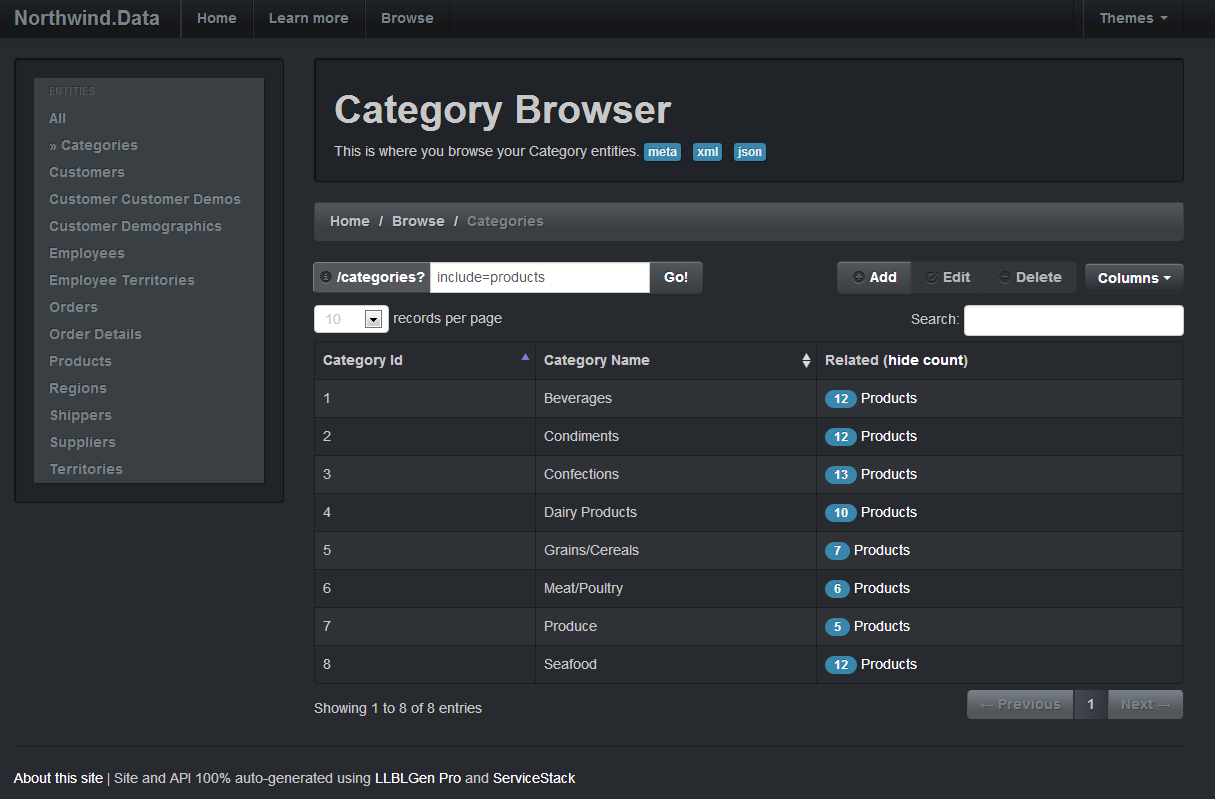 | Slate Theme A bootswatch theme implemented using exclusively 1 custom _Layout page, everything else falls back to the default theme. See it in action: http://northwind.mattjcowan.com/?theme=slate See the source here: Slate theme source |
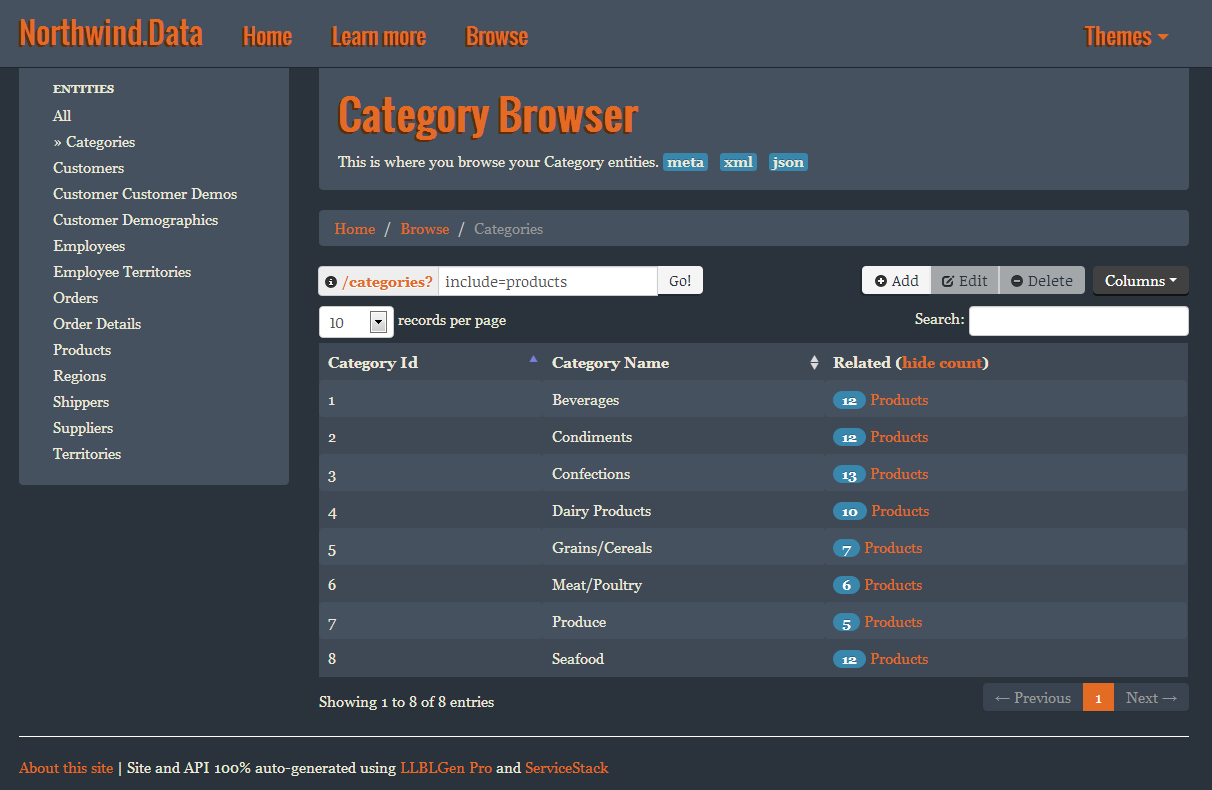 | Superhero Theme A bootswatch theme implemented using exclusively 2 partial views, everything else falls back to the default theme. See it in action: http://northwind.mattjcowan.com/?theme=superhero See the source here: Superhero theme source |
How-To
Ok, so now that you’ve seen some basic themes, here’s how you can leverage this implementation.
App Host changes
To use the new theming engine, you register everything in your app host, the ServiceStack way… See how it’s done in the sample console host app here. Here are the basics, it’s really this simple:
// hook up a custom handler
SetConfig(new EndpointHostConfig
{
    CustomHttpHandlers = {
        // Use the CmsRazorHandler to add theming capabilities, instead of "new RazorHandler()"
        { HttpStatusCode.NotFound, new CmsRazorHandler("/notfound") }
    }
});

//Razor (use CmsRazorFormat to add theming capabilities)
Plugins.Add(new CmsRazorFormat()); // use this instead of "new RazorFormat()"
Obviously, you’ll need the source, so you can just copy the 4 required source files into your application (and modify to your heart’s content). [Get the Source For Theming Your Views](https://github.com/mattjcowan/LLBLGenPro\_SS\_Api\_Razor\_Templates/tree/master/src\_v4/ServiceGeneric/Razor)
Creating your own theme
This implementation has some conventions baked into it. To create a new theme, you basically create 2 new directories: - Content pages go in: /themes/ - View pages go in: /views/themes/ Let’s say you have a theme called “Blackhawks”. You would create 2 new directories (case insensitive)
/themes/blackhawks
/views/themes/blackhawks
Whenever a razor handler or content page is rendered, the implementation looks for the active theme and the appropriate file from the /themes/blackhawks directory. If the file isn’t found there, it will fallback to the default page. For example: If you have a default.cshtml page in the root of your application, but don’t have one in your blackhawks folder, it will use the one at the root of your application (following the standard view engine algorithm in ServiceStack). View pages basically act the same way. To register a theme, you can register it directly in your app host:
Plugins.Add(new CmsRazorFormat { DefaultTheme = "blackhawks" });At runtime, the view engine will look for the active theme using request.GetParam(“Theme”). The suggested way to register the theme is to have it in your request.Items[“Theme”], but this will look for the theme in your Headers, Forms, QueryString, Items context, and Cookies, so there are lots of options. In my implementation online, I just switch the theme using a cookie for demo purposes. Let me know if you have any comments on the above, have issues testing the code, and/or if you can think of a better way to do theming in ServiceStack.
Comments
Comments are moderated. Your email is never displayed publicly.